Trade Strategy Guide
A comprehensive guide to automated token selling with flexible speed levels on TradePoint.
1. Introduction
Simple Selling is an automated token selling strategy that lets you choose how fast you want to sell your tokens without worrying about setting exact daily amounts. The platform automatically calculates how much to sell each day based on your chosen speed level.
What Makes Simple Selling Different?
Traditional Selling:
- You set a fixed daily amount (e.g., 1,000 tokens per day)
- Same amount every day until completed
- Requires manual calculation of how long it will take
Simple Selling:
- Choose a speed level: Conservative, Balanced, or Aggressive
- Platform automatically calculates daily sell amount based on your balance
- Faster levels = higher percentage sold daily + priority in distribution
- Dynamic adjustment as your balance changes
[!IMPORTANT] Simple Selling is only available for tokens that have been configured by administrators to support this strategy. Check with your admin team if you don't see the option.
2. How Simple Selling Works
The Three-Level System
Simple Selling offers three speed levels to match your selling goals:
| Level | Subtitle | Best For |
|---|---|---|
| Conservative | Safe & Steady | Conservative selling, long-term exit |
| Balanced | Best of both worlds | Balanced approach |
| Aggressive | Maximum Speed | Quick liquidation, urgent selling |
How It Works
When you choose a speed level, our team automatically manages:
- Daily lock amount - A portion of your available balance is locked each day for selling
- Distribution priority - Faster levels receive higher priority in sales distribution
- Selling timeline - The speed level determines how quickly your tokens are sold
[!NOTE] The specific percentages and weights for each level are configured and managed by our operations team. You don't need to worry about the calculations - just choose the speed that matches your selling timeline.
3. Step-by-Step Setup
Prerequisites
Before you can use Simple Selling:
- Token must be configured for Simple Selling by administrators
- You must have available token balance
- Token not already active in a selling strategy
Accessing the Trade Strategy Page
Step 1: Navigate to Trade Strategy
- Log into your TradePoint account
- Click "Trade" from the main menu
- The page opens showing all your eligible tokens under the Simple Selling tab
What You'll See:
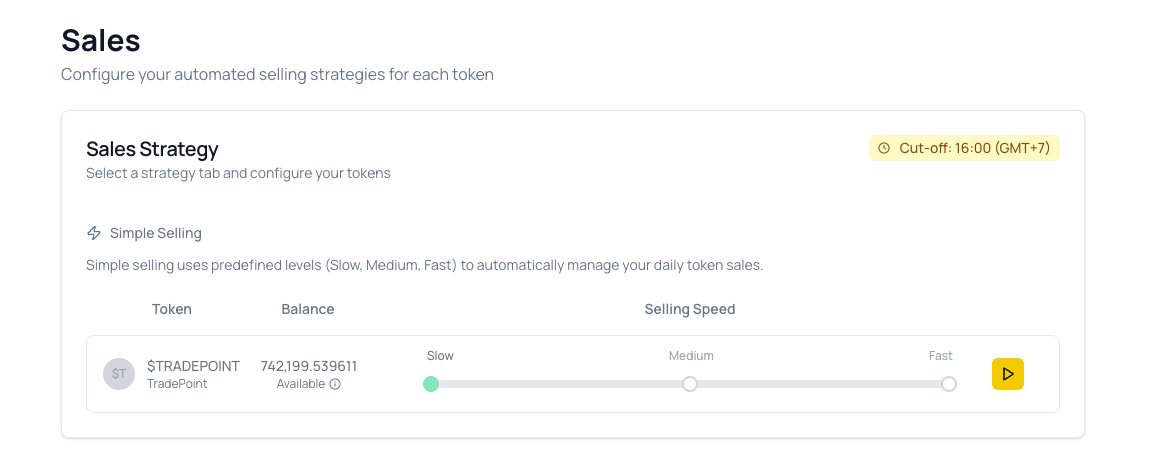
- Page Title: "Trade Strategy" with subtitle "Configure your trade strategy. We'll automatically convert tokens and send proceeds to your account."
- Strategy Tabs: Simple Selling and Traditional Selling
- Cut-off Time: Displayed in the top right corner of the strategy section (e.g., "Cut-off: 16:00 (GMT+7:00)")
- Strategy Cards: Three visual cards above the token table showing the Conservative, Balanced, and Aggressive speed levels at a glance
- Token Table: Lists all your eligible tokens with their balances
Configuring Your Selling Speed
Step 2: Find Your Token
All tokens configured for Simple Selling are displayed in the table with:
- Token: Token name and symbol with icon
- Balance: Your available balance for selling
- Trading Speed: Interactive slider to set speed level
- State: IDLE or ACTIVE badge
- Action: START, SAVE, or PAUSE button
Step 3: Choose Your Speed Level
Use the Trading Speed slider to select your preferred selling pace. Click on a label or drag the slider to one of the three positions:
Conservative (Left Position)
- Best for: Long-term gradual exit
- Locks the smallest daily amount
- Lower priority in sales distribution
- Longest timeline to complete
Balanced (Center Position)
- Best for: Balanced approach
- Moderate daily lock amount
- Medium priority in sales distribution
- Balanced timeline
Aggressive (Right Position)
- Best for: Quick liquidation
- Locks the largest daily amount
- Highest priority in sales distribution
- Fastest timeline to complete
Step 4: Activate Selling
- Adjust the slider to your desired speed level (Conservative, Balanced, or Aggressive)
- Click the START button on the right side of the token row
- Your configuration activates immediately
- Sales will begin processing after the next cut-off time
If you adjust the slider for a token that already has an active configuration, a SAVE button will appear. Click SAVE to apply the new speed level without stopping your current selling.
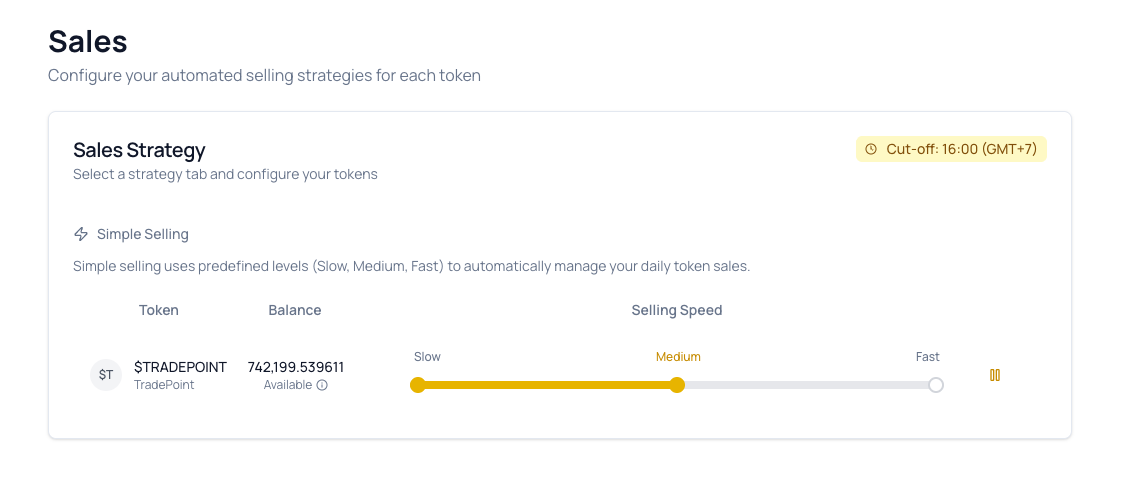
[!TIP] The cut-off time is displayed in the top right corner of the Trade Strategy section. Make sure to activate your configuration before this time to start selling the same day.
4. Understanding the Daily Process
Morning Lock Phase
Time: Runs automatically each morning (check your platform's cut-off time)
What Happens:
Each day, the platform automatically:
- Calculates how much to lock based on your speed level and current balance
- Locks that amount for selling
- Reduces your available balance accordingly
Key Points:
- Lock amount is calculated automatically based on your chosen speed level
- Lock amount decreases as your balance decreases over time
- Locked tokens cannot be used for other purposes until sold or unlocked
- Process happens automatically every day
Final Sale Protection
To ensure efficient trading, the platform has minimum sale thresholds:
When your balance gets low:
- The platform will automatically lock ALL remaining tokens for a final sale
- This prevents inefficiently small trades
- Your configuration completes after this final sale
Our team manages these thresholds to ensure:
- Efficient market execution
- Optimal trading conditions
- Complete selling of your tokens
5. Understanding Sales Distribution
How Sales Are Executed
After tokens are locked each morning, our operations team:
- Sells the locked tokens on the market throughout the day
- Distributes the sale proceeds to users at the end of the day
- Returns any unsold tokens to your available balance
Distribution Priority
Users with different speed levels receive different priority in sales distribution:
Aggressive Level → Highest priority Balanced Level → Medium priority Conservative Level → Standard priority
This means that if you choose a faster speed level, you'll receive a larger share of the actual sales relative to your locked amount.
Fair Distribution System
Our team manages a fair distribution system that:
- Prioritizes faster speed levels in allocation
- Ensures all sold tokens are distributed to users
- Redistributes any excess to maximize allocations
- Guarantees no sold tokens are wasted
You don't need to understand the calculation details - our system automatically handles everything to ensure fair and efficient distribution based on your chosen speed level.
6. What Happens to Your Tokens
After Daily Sales
Tokens Sold:
- Converted to proceeds
- Sales fees deducted
- Net proceeds added to your balance
- Available in your account
Tokens Unsold:
- Automatically unlocked after distribution
- Returned to your available balance
- Can be used immediately
- Will be locked again next day (if config still active)
Example Daily Flow
Morning (Lock Phase):
- Platform automatically locks a portion of your available tokens
- Locked amount is based on your chosen speed level
- Your available balance decreases by the locked amount
Afternoon (Platform Sells):
- Our operations team sells locked tokens on the market
- Sales are executed based on market conditions
Evening (Distribution):
- You receive your share of the sales proceeds
- Sales fees are deducted from proceeds
- Net proceeds are added to your balance
- Any unsold tokens are automatically unlocked
- Unlocked tokens return to your available balance
Next Morning:
- Process repeats with your updated available balance
- Cycle continues until configuration is stopped or completed
7. Managing Your Configuration
Viewing Your Selling Configurations
All your tokens and their selling configurations are displayed in the Simple Selling table on the Trade Strategy page. Each token row shows:
| Column | Description |
|---|---|
| Token | Token name, symbol, and icon |
| Balance | Your available balance |
| Trading Speed | Interactive slider showing current speed level (Conservative / Balanced / Aggressive) |
| State | ACTIVE or IDLE badge indicating whether auto-selling is running |
| Action | START to begin selling, PAUSE to stop, or SAVE to apply slider changes |
Managing Active Configurations
Starting Selling:
- Adjust the speed slider to your desired level
- Click the START button on the right
- Configuration activates immediately
- Sales begin after the next cut-off time
Pausing Selling:
- Locate your active token in the table (State shows ACTIVE)
- Click the PAUSE button on the right
- A confirmation dialog appears with the title "Stop Selling?" and message: "Are you sure you want to stop selling [TOKEN]? This will pause all automatic sales for this token until you resume it."
- Click Confirm to proceed (or Cancel to go back)
- Current day's sales will complete
- No new sales will occur on future days
- The State badge changes back to IDLE
Saving a Speed Change Without Stopping:
- Adjust the slider on an already-active token row
- A SAVE button appears indicating unsaved changes
- Click SAVE to apply the new speed level
- Selling continues uninterrupted with the updated speed
Changing Speed Level (Stop and Restart):
- Click PAUSE on the active token and confirm the stop dialog
- Adjust the slider to your new desired speed level
- Click START to activate with the new speed
- New speed takes effect after the next cut-off time
[!IMPORTANT] Saving vs. Restarting: If you only want to update the speed level, use the SAVE button — this applies the change without interrupting your active selling. Only use PAUSE + START if you want to stop selling entirely and restart from scratch.
Configuration Status Indicators
The State badge, Action button, and row highlight color on each token row show the current status:
IDLE State — START button visible
- Selling is not currently active
- No daily locks occurring
- All tokens remain in available balance
- Row appears with a light gray background
- Click START to begin selling
ACTIVE State — PAUSE button visible
- Selling is currently active
- Daily locks are processing
- Sales occur after each cut-off time
- Row appears with a green (emerald) highlight
- Click PAUSE to stop (a confirmation dialog will ask you to confirm before stopping)
Unsaved Changes — SAVE button visible
- The slider has been moved but not yet applied
- Row has a blue highlight to indicate pending changes
- Click SAVE to apply the speed change to your active configuration
[!NOTE] The State badge and Action button update in real-time. If you see the ACTIVE badge and PAUSE button, your configuration is processing daily sales. Click PAUSE to stop — a confirmation dialog will ask you to confirm before stopping.
8. Frequently Asked Questions
General Questions
Q: Can I change my speed level after starting?
A: Yes! You can change your speed level without stopping selling:
- Adjust the speed slider to your new desired level — a SAVE button will appear
- Click SAVE to apply the change immediately
- The new speed takes effect after the next cut-off time
If you prefer to fully stop and restart:
- Pause your active configuration by clicking the PAUSE button and confirming the dialog
- Adjust the speed slider to your new desired level
- Click START to restart with the new speed
Q: Which level should I choose?
A:
- Conservative: If you want to sell gradually over 7-10 days
- Balanced: If you want balanced selling over 4-6 days
- Aggressive: If you need to sell quickly in 3-4 days or want maximum distribution priority
Q: Will my tokens sell at a guaranteed price?
A: No, the platform determines execution price based on market conditions. You cannot set a minimum sale price.
Lock & Distribution Questions
Q: What if I don't have enough balance on a given day?
A: The platform will lock whatever percentage is available. If your balance falls below the minimum threshold, all remaining tokens will be locked for a final sale.
Q: Why did I receive less than my locked amount?
A: Your allocation depends on several factors:
- Total amount sold by operations (may be less than total locked by all users)
- Your distribution priority based on your chosen speed level
- Fair distribution system managed by our operations team
This is normal - unsold tokens are automatically unlocked and returned to your available balance.
Q: What happens if operations don't sell any tokens on a day?
A: Your locked tokens remain locked until the next distribution. If sales don't occur, tokens stay locked for the next day's attempt.
Q: How does the Aggressive level give me higher priority?
A: Our operations team manages a weighted distribution system where faster speed levels receive higher priority. This means Aggressive level users receive a larger share of sales relative to their locked amount compared to Conservative level users. The exact calculations are managed by our team.
Technical Questions
Q: What is the daily cut-off time?
A: The cut-off time is displayed in the top right corner of the Trade Strategy section (e.g., "Cut-off: 09:00 (GMT+0:00)"). Lock and distribution processes happen relative to this time. Activate your configuration before the cut-off time to start selling the same day.
Q: What happens to my tokens if I pause my configuration?
A: Any currently locked tokens will complete their sale for the current day. After distribution, no new tokens will be locked on future days. All tokens remain in your available balance.
9. Troubleshooting
Issue: Token Not Showing in Sales Table
Possible Causes:
- Token not configured for Simple Selling by administrators
- Token has zero or very low available balance
- Balance below minimum sale threshold
- Token restricted from selling
Solution:
- Check your token balance in Portfolio
- Verify you have "Available" balance (not all locked)
- Contact admin to confirm token supports Simple Selling
- Ensure your balance meets the minimum threshold
Issue: Sales Not Happening
Symptoms:
- State badge shows ACTIVE
- No sales appearing in Trade History page
- Balance not decreasing
Solutions:
-
Wait for First Processing
- If you just activated, wait until after next cut-off time
- Check the cut-off time in the top right corner
- Sales process once daily
-
Check Available Balance
- Go to Portfolio
- Verify tokens show as "Available" in the Sales table
- Ensure balance is above minimum threshold
-
Verify Configuration Is Active
- Refresh the Trade Strategy page
- Check if the State badge shows ACTIVE and the PAUSE button is visible
- If showing the START button, click it to activate
-
Check Operations Activity
- Platform operations may not have sold tokens that day
- Market conditions might prevent sales
- Contact support if no activity after 3 business days
Issue: Receiving Much Less Than Locked Amount
This is Normal!
Your allocation depends on:
- Total Amount Sold: Operations may sell less than total locked
- Your Weight: Your level determines distribution priority
- Other Users: You share sales with all active users
What Happens:
- Our operations team sells tokens based on market conditions
- You receive your fair share based on your speed level and locked amount
- Any unsold tokens are automatically unlocked and returned to your balance
This Is Normal: Your allocation is calculated by our team based on:
- Your locked amount relative to other users
- Your distribution priority (speed level)
- Total market sales volume for the day
Issue: START Button Not Working
Possible Causes:
- Speed slider not properly set
- Browser cache issue
- Insufficient balance
- Token already active in another strategy
Solutions:
-
Check Speed Selection:
- Ensure the slider is positioned on Conservative, Balanced, or Aggressive
- The slider should show a clear selection
-
Hard Refresh:
- Windows:
Ctrl+F5 - Mac:
Cmd+Shift+R
- Windows:
-
Verify Balance:
- Check that your "Available" balance is sufficient
- Ensure balance meets minimum threshold
-
Clear Cache:
- Clear browser cache and cookies
- Log out and log back in
-
Try Different Browser:
- Test with Chrome, Firefox, or Safari
- Update browser to latest version
-
Contact Support:
- Include screenshots of the Trade Strategy page
- Mention the token name and balance
- Describe what happens when you click START
10. Best Practices
Choosing the Right Level
Use Conservative When:
- You want to minimize market impact
- You have time and prefer gradual selling
- You're not concerned about distribution priority
Use Balanced When:
- You want balanced speed and priority
- You're unsure which level to choose
- You want moderate selling pace
Use Aggressive When:
- You need to sell quickly
- You want maximum distribution priority
- You're willing to sell larger percentages daily
Timing Your Setup
Before Cut-Off Time:
- Activate configurations before the daily cut-off time
- Cut-off time is displayed in the top right corner
- Activating before cut-off ensures sales begin the same day
- Activating after cut-off means sales start the next day
Monitor First Few Days:
- Watch how much gets sold daily in the Trade History page
- Verify your allocations match expectations
- Adjust speed level if needed (move the slider and click SAVE, or pause, change slider, and restart)
Managing Expectations
Sales Are Not Guaranteed:
- Platform sells based on market conditions
- Actual daily sales may vary
- Your allocation depends on total sales volume
Distribution Is Weighted:
- Higher levels get priority
- Your share depends on all active users
- Redistribution ensures fairness
Unsold Tokens Are Unlocked:
- You don't lose unsold tokens
- They return to available balance
- Will be locked again next day if config active
Need Help?
If you have questions or issues:
- Check this guide's Troubleshooting section
- Verify the cut-off time displayed on the Trade Strategy page
- Check if your token's State badge shows ACTIVE or IDLE
- Contact your admin team with:
- Token name and balance
- Speed level selected
- Screenshots of the Trade Strategy page
- Steps already tried
This guide is maintained by the TradePoint team. Last updated: March 2026