Token Vesting Schedule Guide
A comprehensive guide to understanding your token vesting schedule, tracking token releases, and claiming vested tokens on TradePoint.
1. Introduction
The Token Vesting Schedule feature allows you to track and manage your token allocations across different funding rounds. Think of it as a detailed release schedule showing when your tokens become available to claim over time.
What You Can Do
- View Vesting Schedule - See all your token allocations across different funding rounds
- Track Token Releases - Monitor how many tokens have vested and are available to claim
- Understand Timelines - View TGE dates, cliff periods, and vesting periods for each round
- Claim Vested Tokens - Transfer your vested tokens to your portfolio balance when available
- Monitor Progress - Track real-time vesting progress with daily updates
[!IMPORTANT] Tokens vest (unlock) automatically based on the schedule, but you must manually claim them to make them available in your portfolio. Claiming is a separate action from vesting.
2. Understanding Token Vesting
What is Token Vesting?
Token vesting is a gradual release mechanism where tokens are distributed to you over a period of time rather than all at once. This is common in funding rounds and ensures long-term commitment.
Key Terms
TGE (Token Generation Event)
- The date when a token is officially launched
- A percentage of your tokens may unlock immediately at TGE
- Example: 10% TGE unlock means 10% of your tokens are available on launch day
Cliff Period
- A waiting period after TGE where no tokens are released
- No tokens vest during the cliff period (except the initial TGE unlock)
- Example: A 3-month cliff means you wait 3 months before daily vesting begins
Vesting Period
- The time period over which remaining tokens are gradually released
- Tokens vest (unlock) daily in equal amounts
- Example: 12-month vesting means tokens release daily over 12 months
Daily Vesting Rate
- The amount of tokens that unlock each day during the vesting period
- Calculated as:
(Total Tokens - TGE Amount) ÷ Vesting Days - Example: 1,000 tokens/day means you receive 1,000 additional tokens daily
Vested Tokens
- Tokens that have already unlocked according to the schedule
- These are unlocked but not yet claimed
Available to Claim
- Vested tokens that are ready to be claimed
- After claiming, these tokens move to your portfolio balance
Vesting Example
Let's say you have an allocation with these parameters:
Total Allocation: 100,000 tokens
TGE Unlock: 10% (10,000 tokens)
Cliff Period: 3 months
Vesting Period: 12 months
Timeline:
┌────────────────────────────────────────────────────────────────┐
│                                                                │
│  Day 1 (TGE)    →    Month 3     →    Month 15                 │
│  ────────────────────────────────────────────────────────────  │
│                                                                │
│  10,000 tokens        Nothing         90,000 tokens            │
│  unlock instantly     happens         vest daily               │
│                                       (250/day)                │
│                                                                │
│  └─ TGE Unlock ─┘  └─ Cliff ──┘  └─── Vesting Period ───┘      │
│                                                                │
└────────────────────────────────────────────────────────────────┘
What You Get:
- Day 1 (TGE): 10,000 tokens immediately available
- Month 1-3 (Cliff): No new tokens (waiting period)
- Month 4-15 (Vesting): 250 tokens unlock every day for 12 months
- Calculation: (100,000 - 10,000) ÷ 365 days = 246.58 ≈ 250 tokens/day
After 6 Months:
- TGE tokens: 10,000
- Vested tokens (90 days × 250): 22,500
- Total vested: 32,500 tokens
3. Accessing Your Vesting Schedule
Step 1: Navigate to Vested & Claims
- Log into your TradePoint account
- From the main menu, click "Portfolio"
- Scroll down to find the "Vested & Claims" section
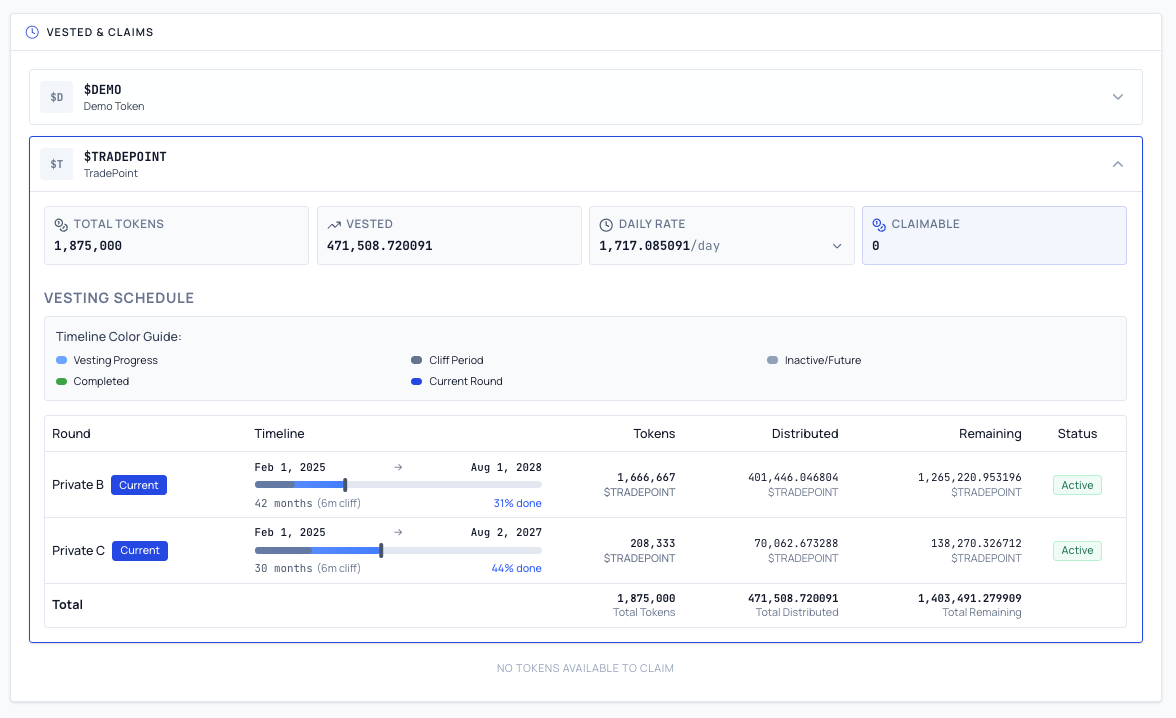
Step 2: Select Your Token
Your tokens are displayed as expandable rows. Each row represents a token you have a vesting schedule for.
- Click on a token row to expand it and view its vesting details
- The expanded row shows your summary metrics and the vesting schedule table
- Click again to collapse a token row
[!TIP] If you have multiple tokens, each appears as a separate row. Expand the one you want to review.
4. Understanding Your Vesting Metrics
When you expand a token row, you'll see four summary metrics.
Card 1: Total Tokens
Total Tokens:
- Your complete token allocation across all funding rounds
- This number never changes (unless you request a refund)
- Includes tokens that have vested and tokens still vesting
Card 2: Vested
Vested:
- Tokens that have already unlocked according to the schedule
- Updates automatically every day as more tokens vest
- Includes TGE unlock + daily vested amounts
- This is a real-time calculation based on your vesting timeline
What It Tells You:
- How much of your total allocation has unlocked
- Progress percentage: (Vested ÷ Total) × 100
- Example: (759,513 ÷ 3,333,334) × 100 ≈ 22.8% complete
Card 3: Daily Rate
Daily Rate:
- The number of tokens unlocking each day
- Sum of all active vesting rounds
- If all rounds are in cliff period, this shows "0"
Rounds Breakdown:
- On desktop, click the expand icon (chevron) on the Daily Rate card to see each round's daily rate
- On mobile, tap the ⓘ info icon to open a popover showing individual round rates
- Useful if you have multiple allocations
Why Daily Rate Might Be 0:
- All your rounds are still in cliff period
- All tokens have already fully vested
- Check the timeline in the details table below
Card 4: Claimable
Claimable:
- Vested tokens that are ready to be claimed right now
- After claiming, these tokens move to your portfolio balance
- Shows 0 when nothing is available, with the message "No tokens available to claim"
Why Less Than "Vested"?
- You may have already claimed some vested tokens
- Formula:
Claimable = Vested - Already Claimed
The Claim Button:
- A "CLAIM" button appears next to each token when you have a claimable balance greater than 0
- Disabled (greyed out) when balance is 0
- Disabled if you have a pending refund request
[!IMPORTANT] Vesting is automatic, but claiming is manual. Tokens vest daily based on your schedule, but you must click "Claim" to move them to your portfolio balance.
5. Vesting Timeline Explained
Each vesting round follows a specific timeline with three key phases.
Phase 1: TGE (Token Generation Event)
What Happens:
- Token is officially launched on the blockchain
- A percentage of your tokens unlock immediately
- You can claim these tokens right away
Example:
TGE Date: January 1, 2024
TGE Unlock: 10% (10,000 tokens)
Status: ✅ Available to claim
Phase 2: Cliff Period
What Happens:
- A waiting period where no additional tokens vest
- Your initial TGE tokens are available, but no new tokens unlock
- This period ensures commitment before further releases
Example:
Cliff Start: January 1, 2024
Cliff End: April 1, 2024 (3 months)
Status: ⏳ Waiting for vesting to begin
During the Cliff:
- You keep your TGE tokens (already claimed or available)
- Daily vesting rate shows "0"
- No new tokens unlock until cliff ends
Phase 3: Vesting Period
What Happens:
- Tokens unlock daily in equal amounts
- Continues until all remaining tokens are released
- You can claim accumulated tokens anytime
Example:
Vesting Start: April 2, 2024 (day after cliff ends)
Vesting End: April 2, 2025 (12 months)
Daily Rate: 250 tokens/day
Status: 🔄 Currently vesting
During Vesting:
- Your balance grows by the daily rate each day
- "Vested So Far" increases automatically
- You can claim at any time (doesn't affect vesting schedule)
Visual Timeline
┌────────────────────────────────────────────────────────────────┐
│                                                                │
│  Jan 1, 2024         Apr 1, 2024           Apr 2, 2025         │
│  (TGE)               (Cliff Ends)          (Vesting Ends)      │
│  │                   │                     │                   │
│  ▼                   ▼                     ▼                   │
│  ●───────────────────●─────────────────────●                  │
│  │                   │                     │                   │
│  10,000 tokens       Vesting starts        All tokens          │
│  unlock instantly    250 tokens/day        fully vested        │
│                                                                │
│  └─ TGE ─┘  └─ 3mo Cliff ─┘  └─ 12mo Vesting ─┘              │
│                                                                │
└────────────────────────────────────────────────────────────────┘
6. Claiming Vested Tokens
When Can You Claim?
You can claim tokens when:
- ✅ You have a positive "Available to Claim" balance
- ✅ Tokens have vested according to the schedule
- ✅ You don't have a pending or confirmed refund request
You cannot claim when:
- ❌ Available balance is 0
- ❌ You have a pending refund request
- ❌ Tokens haven't vested yet (still in cliff or future dates)
Step-by-Step Claiming Process
Step 1: Check Available Balance
- Expand a token row in the "Vested & Claims" section
- Look at the "Claimable" metric card
- Verify you have tokens available (greater than 0)
- Note the amount you'll be claiming

Step 2: Click the Claim Button
- Click the "CLAIM" button next to the token amount
- A confirmation dialog will appear
- Review the details before proceeding
What You'll See:
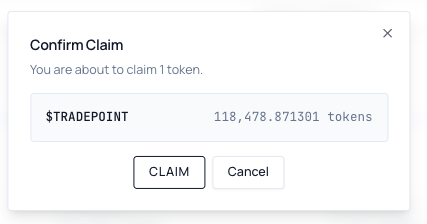
Step 3: Confirm Claim
- Review the token amount shown in the dialog
- Verify the token symbol (e.g., USDT, ETH)
- Click "Claim" to proceed
- Or click "Cancel" to return without claiming
Step 4: Claim Success
- A success screen appears with a green checkmark
- The claimed token and amount are displayed
- Click "Done" to close the dialog
- Your vesting metrics update immediately
- Claimed tokens are now in your portfolio balance
What Changed:
- Claimable: Resets to 0 (or remaining balance if partial claim)
- Portfolio Balance: Increases by claimed amount
- Transaction History: New "Token Claim" entry recorded
[!TIP] After claiming, tokens appear in your portfolio balance immediately. You can now withdraw them to an external wallet if desired. See the TradePoint User Payout Guide for withdrawal instructions.
How Often Should You Claim?
Best Practices:
Option 1: Regular Claims
- Claim weekly or monthly to move tokens to your portfolio
- Good if you plan to withdraw or use tokens soon
- Keeps your vesting card balance low
Option 2: Accumulate and Claim
- Let tokens accumulate for months
- Claim once in bulk when you need them
- Reduces transaction frequency
- Good if you're holding long-term
Option 3: Claim Before Withdrawal
- Only claim when you're ready to withdraw
- Minimizes unnecessary transactions
- Most efficient approach for long-term holders
[!IMPORTANT] There's no deadline to claim vested tokens. They remain available indefinitely until you claim them. You won't "lose" tokens if you don't claim immediately.
Claiming with Multiple Tokens
If you have claimable balances across multiple tokens, a "Claim All Tokens (n)" button appears at the top of the "Vested & Claims" section. Hovering over it shows a preview of each token's claimable amount.
Clicking "Claim All Tokens" opens a confirmation dialog listing all tokens and their amounts. The system then processes each token's claim in sequence and shows a combined success screen.
Claiming with Multiple Rounds
If you have multiple funding rounds within a single token, the claim process:
- ✅ Claims tokens from all rounds simultaneously
- ✅ Calculates the weighted distribution automatically
- ✅ Shows total available amount across all rounds
- ✅ You don't need to claim from each round separately
Example:
Your Rounds:
├─ Seed Round: 2,000 tokens available
└─ Series A: 3,000 tokens available

When you click "Claim":
✓ Total claimed: 5,000 tokens (both rounds combined)
7. Vesting Schedule Details Table
Below the summary metrics, you'll find a Vesting Schedule table showing information for each funding round you're part of.
Timeline Color Guide
A color legend is shown above the table to help you read the timeline bar:
| Color | Meaning |
|---|---|
| Blue | Vesting Progress (tokens actively vesting) |
| Dark Grey | Cliff Period (waiting period, no vesting) |
| Light Grey | Inactive / Future (not yet started) |
| Green | Completed (fully vested) |
| Darker Blue | Current Round (the round active today) |
Table Columns Explained
| Column | What It Shows | Example |
|---|---|---|
| Round | Funding round name with a "Current" badge if active; an "Airdrop" badge for airdrop distributions | Private A |
| Timeline | Date range, total duration, cliff info, and % progress bar | Feb 1, 2025 → Aug 1, 2028 · 42 months · 6m cliff · 30% done |
| Tokens | Total token allocation for this round | 1,666,667 |
| Distributed | Tokens that have vested so far | 381,202.511553 |
| Remaining | Tokens still locked and vesting | 1,285,464.488447 |
| Status | Active, Pending, or Refund status | Active |
Understanding the Timeline Column
Each row's timeline shows:
- Date range — Start date → End date of the vesting schedule
- Duration — Total months for the full vesting period
- Cliff info — Cliff duration in months (e.g.
6m cliff), highlighted - Progress bar — Colour-coded bar showing vested vs remaining vs cliff vs future
- Percentage done — e.g.
30% done
Example:
Feb 1, 2025  →  Aug 1, 2028
42 months  (6m cliff)         30% done
[████████████░░░░░░░░░░░░░░░░░]
Example Row Breakdown
┌───────────────────┬────────────────────────────────┬───────────┬─────────────────┬──────────────────┬────────┐
│ Round             │ Timeline                       │ Tokens    │ Distributed     │ Remaining        │ Status │
├───────────────────┼────────────────────────────────┼───────────┼─────────────────┼──────────────────┼────────┤
│ Private A Current │ Feb 1, 2025 → Aug 1, 2028      │ 1,666,667 │ 381,202.511553  │ 1,285,464.488447 │ Active │
│                   │ 42 months (6m cliff)  30% done │           │ $TRADEPOINT     │ $TRADEPOINT      │        │
└───────────────────┴────────────────────────────────┴───────────┴─────────────────┴──────────────────┴────────┘
Interpretation:
- Private A round — currently active ("Current" badge)
- Timeline: Runs Feb 2025 to Aug 2028, 42 months total with a 6-month cliff, 30% through vesting
- 1,666,667 total tokens allocated
- 381,202 distributed (vested so far)
- 1,285,464 remaining to vest
- Active status — normal vesting in progress
Quick Math:
- Distributed + Remaining ≈ Total ✓
Airdrop Rounds
Some allocations may be airdrop distributions rather than traditional funding rounds. Airdrop rounds are distinguished by:
- A gift icon next to the round name
- An "Airdrop" badge displayed below the round name
Airdrop rounds follow the same vesting schedule mechanics as regular rounds and can be claimed the same way.
Status Column
Active (Green Badge)
- Normal vesting in progress
- Tokens vest daily according to schedule
- You can claim vested tokens
Pending (Grey Badge)
- A refund request has been submitted and is awaiting admin review
- Claiming is disabled while the request is under review
- Contact the admin team for status updates
Refund (Red Badge)
- A refund has been confirmed for this allocation
- Vesting is paused or cancelled for this round
- Follow refund process with admin team
[!NOTE] See the TradePoint User Manual for information about requesting refunds.
Totals Row
If you have multiple rounds for the same token, a Total row appears at the bottom:
┌──────────────┬───────────┬─────────────────┬──────────────────┐
│ Round        │ Tokens    │ Distributed     │ Remaining        │
├──────────────┼───────────┼─────────────────┼──────────────────┤
│ Private A    │ 1,666,667 │ 381,202.511553  │ 1,285,464.488447 │
│ Strategic    │ 1,666,667 │ 378,310.577945  │ 1,288,356.422055 │
├──────────────┼───────────┼─────────────────┼──────────────────┤
│ Total        │ 3,333,334 │ 759,513.089497  │ 2,573,820.910503 │
└──────────────┴───────────┴─────────────────┴──────────────────┘
What It Shows:
- Sum of all tokens across all rounds
- Total distributed vs remaining
8. Understanding Vesting Status
Active Status
What It Means:
- Your vesting schedule is running normally
- Tokens vest daily according to the timeline
- You can claim vested tokens anytime
What You Should Do:
- Monitor your vesting progress
- Claim tokens when convenient
- Check daily rate to understand your token accrual
Pending Status
What It Means:
- You've submitted a refund request that is awaiting admin review
- Claiming is disabled while the request is pending
- No new tokens can be claimed during this period
What You Should Do:
- Wait for admin review and approval
- Monitor refund status in your activity logs
- Contact support if you have questions about the review
Refund Status
What It Means:
- Your refund has been confirmed for this allocation
- Vesting is paused or cancelled for this round
- Admin team has processed your refund request
What You Should Do:
- Wait for admin confirmation of the refund completion
- Monitor refund status in your activity logs
- Do not expect new tokens to vest during refund process
- Contact support if you have questions
Why Request a Refund?
- You want to exit your token allocation early
- You need to return tokens for compliance reasons
- Platform or project changes make holding undesirable
[!IMPORTANT] Refund requests are not instant. They require admin review and approval. Processing time varies based on the situation and compliance requirements.
[!NOTE] For detailed refund instructions, see the TradePoint User Manual section on Token Refunds.
9. Frequently Asked Questions
General Questions
Q: Do tokens vest automatically? A: Yes! Tokens vest (unlock) automatically every day based on your schedule. You don't need to do anything for vesting to happen.
Q: Do I have to claim tokens immediately when they vest? A: No. Vested tokens remain "Available to Claim" indefinitely until you manually claim them. There's no deadline or expiration.
Q: What happens if I don't claim for months? A: Nothing bad! Your tokens continue vesting normally and accumulate in your "Available to Claim" balance. Claim whenever you're ready.
Q: Can I claim tokens multiple times per day? A: Yes, but it's unnecessary. Tokens vest once per day, so claiming multiple times per day won't give you more tokens.
Q: Does claiming affect future vesting? A: No. Claiming only moves already-vested tokens to your portfolio. It doesn't change your vesting schedule or future token releases.
Claiming Questions
Q: Where do claimed tokens go? A: Claimed tokens move to your portfolio balance. From there, you can:
- Hold them in your portfolio
- Withdraw to an external wallet (see Payout Guide)
- Trade them (if trading is enabled)
Q: Can I claim tokens from specific rounds only? A: No. Clicking "Claim" for a token claims all available tokens across all your active rounds for that token simultaneously. The system handles the distribution automatically.
Q: Why is my "Claimable" less than "Vested"? A: This means you've already claimed some vested tokens in the past:
- Vested: Total tokens unlocked since TGE
- Claimable: Vested tokens minus already claimed tokens
Q: What if claiming fails? A: If you see an error:
- Wait a few minutes and try again
- Refresh the page and try again
- Check if you have an active refund request (blocks claiming)
- Contact support if the issue persists
Multiple Rounds Questions
Q: Why do I have multiple rounds? A: You may have participated in multiple funding rounds (e.g., Seed Round + Series A) or received allocations at different times.
Q: Do all rounds vest at the same rate? A: No. Each round has its own:
- TGE date
- Cliff period
- Vesting period
- Daily vesting rate
Check the details table to see each round's specific schedule.
Q: Can one round be in cliff while another is vesting? A: Yes! Rounds are independent. One round might be vesting daily while another is still in its cliff period.
Calculation Questions
Q: How is "Vested" calculated? A: Formula:
Vested = TGE Amount + (Days Since Vesting Started × Daily Rate)
Example:
- TGE Amount: 10,000 tokens
- Daily Rate: 250 tokens/day
- Days Since Vesting Started: 90 days
- Vested = 10,000 + (90 × 250) = 32,500 tokens
Q: How is the daily vesting rate calculated? A: Formula:
Daily Rate = (Total Allocation - TGE Amount) ÷ Vesting Days
Example:
- Total Allocation: 100,000 tokens
- TGE Amount (10%): 10,000 tokens
- Vesting Period: 12 months = 365 days
- Daily Rate = (100,000 - 10,000) ÷ 365 = 246.58 tokens/day
Q: Why do decimals show so many digits? A: Tokens support high precision (usually 18 decimals) to ensure accurate calculations. The display shows 6 decimals by default for readability.
Status and Refund Questions
Q: Can I still claim tokens if status is "Pending" or "Refund"? A: No. When a refund request is pending or confirmed, claiming is disabled for that token to prevent complications during the refund process.
Q: What happens to vested but unclaimed tokens during a refund? A: This depends on the refund terms:
- Some refunds allow you to keep vested tokens
- Others require returning all tokens (vested + unvested)
- Admin team will clarify during the refund process
Q: Can I cancel a refund request? A: Contact the admin team or support. Refund cancellation depends on how far along the process is and platform policy.
10. Troubleshooting
Issue: "Loading vesting data…" Stays Forever
Symptoms:
- Page shows "Loading vesting data…" indefinitely
- Vesting metrics don't appear
- Table doesn't load
Solutions:
- Refresh the page
- Press
F5orCtrl+R(Windows) /Cmd+R(Mac) - Wait 10-15 seconds for data to load
- Press
- Clear browser cache
- Press
Ctrl+Shift+Delete(Windows) /Cmd+Shift+Delete(Mac) - Select "Cached images and files"
- Click "Clear data"
- Reload the page
- Press
- Try a different browser
- Switch to Chrome, Firefox, Safari, or Edge
- Temporarily disable browser extensions
- Try incognito/private mode
- Check your internet connection
- Ensure you're connected to the internet
- Try loading other websites
- Restart your router if necessary
- Contact support
- If issue persists after trying above steps
- Provide screenshot and browser information
Issue: "No tokens available to claim" Message
Symptoms:
- Claimable shows 0 with the message "No tokens available to claim"
- Claim button is inactive
Causes & Solutions:
Cause 1: No Vesting Allocations
- You don't have any token allocations yet
- Solution: Wait for admin to assign you a funding round allocation
Cause 2: TGE Date Not Reached
- Your token allocations exist but TGE date is in the future
- Solution: Check with admin for expected TGE dates
Cause 3: All Tokens Fully Vested and Claimed
- You've completed your vesting and claimed everything
- Solution: This is normal - your vesting journey is complete!
Cause 4: System Configuration Issue
- Database or configuration problem
- Solution: Contact support with screenshot
Issue: Claimable Shows 0 But I Should Have Tokens
Symptoms:
- "Vested" shows a positive amount
- "Claimable" shows 0
- You haven't claimed recently
Solutions:
- Check if you claimed earlier
- Look at your transaction history
- Filter for "Token Claim" transactions
- You may have claimed and forgotten
- Check for pending or confirmed refund
- If you have a refund request active, claiming is disabled
- Check the status column in the details table
- Look for "Pending" status badge (grey) or "Refund" status badge (red)
- Wait for cliff period to end
- If you only see the TGE amount vested, you may still be in cliff period
- Check the timeline visual - is it still showing the cliff section?
- Daily vesting starts after cliff ends
- Verify vesting hasn't started yet
- If "Vested So Far" only shows TGE amount and doesn't increase
- Check TGE date and cliff period in the details table
- Vesting may not have started yet
- Refresh vesting data
- Navigate away from Portfolio page
- Return to Portfolio page
- System recalculates vesting in real-time
- Contact support if:
- None of the above apply
- You're certain tokens should be available
- Provide screenshots of vesting metrics and details table
Issue: Claim Button is Disabled/Greyed Out
Symptoms:
- Claim button is not clickable
- Button appears faded or greyed out
- Cursor doesn't change to pointer when hovering
Reasons & Solutions:
Reason 1: Available Balance is 0
- No tokens available to claim right now
- Solution: Wait for more tokens to vest; check back tomorrow
Reason 2: Pending or Confirmed Refund Request
- You have an active refund request (Pending or Refund status)
- Solution:
- Complete or cancel refund process
- Contact admin team about refund status
- Claiming will be re-enabled after refund is resolved
Reason 3: System is Processing Previous Claim
- A recent claim is still being processed
- Solution:
- Wait 1-2 minutes
- Refresh the page
- If persists >5 minutes, contact support
Reason 4: Not Authenticated
- Your session may have expired
- Solution:
- Refresh the page
- Log out and log back in
- Clear cookies if issue persists
Issue: "Vested So Far" Doesn't Increase Daily
Symptoms:
- Number stays the same for multiple days
- No daily growth in vested amount
- Vesting rate shows >0 but nothing changes
Solutions:
- Check if you're in cliff period
- Look at the timeline visual
- If in cliff period, vesting hasn't started yet
- Only TGE tokens are vested during cliff
- Verify TGE date
- Ensure TGE date has passed
- If TGE is in the future, vesting hasn't started
- Check vesting end date
- You may have reached 100% vested
- All tokens released = no more daily increases
- This is normal and expected at completion
- Refresh the page
- Browser cache may show old data
- Hard refresh:
Ctrl+F5(Windows) /Cmd+Shift+R(Mac) - Check "Vested So Far" updates
- Timezone considerations
- Vesting updates at midnight UTC
- Your local time may differ
- Check again after 12+ hours
- Contact support if:
- You're past cliff period
- TGE date has passed
- Vesting end date not reached
- Still no daily increases after 3+ days
Issue: Numbers Don't Add Up
Symptoms:
- Total Tokens ≠ Distributed + Remaining
- Unclaim > Distributed
- Calculations seem wrong
Common Causes:
Cause 1: Precision and Rounding
- Tokens use high precision (18 decimals)
- Display shows fewer decimals (6 by default)
- Small rounding differences are normal
Example:
Displayed:
  Distributed: 15,000.000000
  Remaining: 35,000.000000
  Total: 50,000.000000

Actual (full precision):
  Distributed: 15,000.123456789012345678
  Remaining: 34,999.876543210987654322
  Total: 50,000.000000000000000000
Cause 2: Real-Time Calculation
- "Vested So Far" is calculated in real-time
- "Distributed" in table may show slightly older data
- Difference is usually very small
Cause 3: Multiple Rounds Aggregation
- Totals row sums multiple rounds
- Each round may have different precision
- Cumulative rounding can create small discrepancies
Cause 4: Claimed vs Vested Confusion
- Vested: Tokens unlocked by schedule
- Claimed: Tokens moved to portfolio
- Unclaimed = Vested - Claimed
When to Worry:
- ❌ Differences of many tokens (>1% of total)
- ❌ Negative numbers appearing
- ❌ Totals way off (thousands of tokens difference)
When NOT to Worry:
- ✅ Differences of a few tokens due to rounding
- ✅ Small decimal place differences
- ✅ Differences <0.001% of total allocation
Solution:
- For small discrepancies: Ignore (normal rounding)
- For large discrepancies: Contact support with screenshots
Issue: Token Rows Are Missing or Not Loading
Symptoms:
- No token rows appear in the Vested & Claims section
- Rows show a loading state indefinitely
- A token you expect to see is missing
Solutions:
- Wait for loading to complete
- Initial load can take 5-10 seconds
- Wait for token rows to appear before interacting
- Refresh the page
- Hard refresh:
Ctrl+F5(Windows) /Cmd+Shift+R(Mac) - Fetches fresh data from server
- Hard refresh:
- Check if allocations exist
- Confirm with admin that you have a funding round allocation
- Verify TGE dates
- Tokens may not appear until TGE date
- Check with admin for expected launch dates
- Clear browser cache and cookies
- Go to browser settings, clear site data for TradePoint
- Log back in and check again
- Contact support with:
- Screenshot of the empty section
- List of tokens you expect to see
- Your allocation details (if known)
Issue: Timeline Visual Doesn't Make Sense
Symptoms:
- Timeline bar shows weird proportions
- Colors don't match the dates
- Progress bar seems incorrect
Understanding the Timeline:
Normal Timeline:
│ ● │══════════│▓▓▓▓▓▓▓░░░░░░│
  TGE   Cliff    Vested | Remaining
Weird Timeline Example 1: Tiny Cliff
│ ● │▓▓▓▓▓▓▓▓▓▓▓▓▓▓▓▓▓░░│
  TGE  (Very short cliff, mostly vested)
- Reason: Cliff period is very short (e.g., 1 week)
- Solution: This is normal for short cliff schedules
Weird Timeline Example 2: All Grey
│ ● │══════════════════════│
  TGE  (Still in cliff period)
- Reason: You're currently in the cliff period
- Solution: Wait for cliff to end, then vesting starts
Weird Timeline Example 3: All Filled
│ ● │══════════│▓▓▓▓▓▓▓▓▓▓▓▓│
  TGE   Cliff    (All vested!)
- Reason: Vesting period is complete
- Solution: All tokens have vested - this is normal
When to Report:
- Timeline shows future dates as vested
- Vested portion shrinks over time (impossible)
- TGE marker is missing
- Timeline completely blank
Issue: Claim Fails with Error Message
Symptoms:
- Click "Claim" but get error
- Red error message appears
- Tokens don't move to portfolio
Common Error Messages:
Error: "No tokens available to claim"
- Cause: Balance became 0 between opening dialog and clicking confirm
- Solution: Close dialog, check balance, try again
Error: "Claim failed - please try again"
- Cause: Temporary server issue or network problem
- Solution:
- Wait 2-3 minutes
- Refresh the page
- Try claiming again
Error: "Insufficient claimable balance"
- Cause: Another process reduced your available balance
- Solution: Refresh page and check current balance
Error: "Authentication required"
- Cause: Your session expired
- Solution:
- Log out completely
- Log back in
- Navigate back to vesting page
- Try claiming again
Error: "Refund request pending - claiming disabled"
- Cause: You have an active refund request
- Solution:
- Complete or cancel refund process
- Contact admin team for assistance
Generic Errors:
- "Transaction failed"
- "System error"
- "Unable to process claim"
Solution for Generic Errors:
- Screenshot the error message
- Note exact time the error occurred
- Check your transaction history for any partial claim
- Contact support with:
- Screenshot
- Time of error
- Token symbol
- Amount you tried to claim
Need More Help?
If you're still experiencing issues after trying the troubleshooting steps:
- Check your account settings to ensure KYC and security settings are properly configured
- Review the TradePoint User Manual for comprehensive platform guidance
- Contact support with:
- Clear description of the issue
- Steps you've already tried
- Screenshots (blur sensitive info)
- Token symbol and round name if relevant
- Date and time when issue occurred
When Contacting Support, Provide:
- What you were trying to do
- What you expected to happen
- What actually happened
- Any error messages (exact wording)
- Screenshots with timestamps
- Browser and device information
This guide is maintained by the TradePoint team. Last updated: March 2026